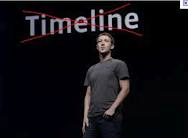
How To Remove Facebook Timeline?,How To Disable Facebook Timeline?,How To Get Old Facebook Back?These are the questions every facebook user want to know.So here I got a simple solution on How To Remove Facebook Timeline Keep Reading.
Facebook recently launched new feature called Facebook Timeline.Some facebookies like Timeline and some hate it but there was no response from facebook on How To Remove Facebook Timeline for those who didn't like this feature.So read on How To Remove Facebook Timeline
How To Activate Facebook Timeline in a Single Click
The previous day I was searching for the same on internet and found some article on How To Remove Facebook Timeline and gave a try,surprisingly it worked.So I thought to share with you as well Keep Reading to know How To Remove Facebook Timeline.
Also Read the below articles:
How To Hide Friends List From Others on Facebook Timeline.
Facebook Magic Code/Status Trick and How it works.
How To Delete A Facebook Account.
Note:There is no response from facebook on disabling timeline feature so here we are going to perform a Browser Tweak to disable timeline that will get you back the old facebook view.This will appear only to you and other will be able to see your Timeline Profile.
How To Remove Facebook Timeline:
Mozilla Firefox Users:
Step 1:Go to this [link] and install User Agent Switcher Addon then restart your Browser.
Step 2:Open Firefox, Press the Alt Key > Open Tools > Default User Agent > Internet Explorer and choose Internet Explorer 7.
Step 3:Open your facebook and refresh your profile page(Ctrl+F5).Thats it now you will get your old profile back with some errors like extra spaces,formatting etc.
Google Chrome Users:
Update:Follow the below link to Remove Facebook Timeline for google chrome:
Remove Facebook Timeline For Google Chrome.
Step 1:Right click on Chrome.exe Icon and go to Properties.
Step 2: Make sure you are in the ‘Shortcut’ Tab.
Step 3: Paste the following code in the Target window after the : “C:\Program Files\Google\Chrome\Application\chrome.exe”
CODE – For Windows Vista & Windows 7 Users.
–user-agent=”Mozilla/4.0 (compatible; MSIE 7.0; Windows NT 6.0)”
CODE – For Windows XP Users.
–user-agent=”Mozilla/4.0 (compatible; MSIE 7.0; Windows NT 5.1)”
Note: Leave space between
“C:\Program Files\Google\Chrome\Application\chrome.exe”<SPACE>–user-agent=”Mozilla/4.0 (compatible; MSIE 7.0; Windows NT 6.0)”
Step 4:Open your facebook and refresh your profile page(Ctrl+F5).Thats it now you will get your old profile back with some errors like extra spaces,formatting etc.To remove those errors install this addon for firefox[link]
Update:Follow the below link to Remove Facebook Timeline for google chrome:
Remove Facebook Timeline For Google Chrome.
Safari Users:
Step 1:Open Safari Browser, go to the Preferences menu > Advanced > Tick the “Show Develop menu in menu bar” option.
Step 2: Click the page icon menu (next to the Gear icon near Search Bar) then select the Develop/user agent menu, Choose the User Agent as Internet Explorer 7.
Step 3:Open your facebook and refresh your profile page(Ctrl+F5).Thats it now you will get your old profile back with some errors like extra spaces,formatting etc.To remove those errors install this addon for firefox[link]
Internet Explorer:
Our Tweak is to set all the user agents to Internet Explorer 7.So if you are using Internet Explorer 7 then by default you don't get facebook timeline.If you are using updated version then follow the below settings.
Step 1: Open Your Facebook Profile Page.
Step 2: Press Alt Key. Click on Tools > Compatibility View Settings.
Step 3: If facebook.com is already filled in, Click on Add else fill in facebook.com and Click on Add followed by Close.
Step 4:You are done just refresh the page.
Credits:Fb Purity
So friends I hope you are able to Remove Facebook Timeline.If you have any trouble then please leave your comment.Those who have successfully Removed Facebook Timeline Share your experience.